How to Open
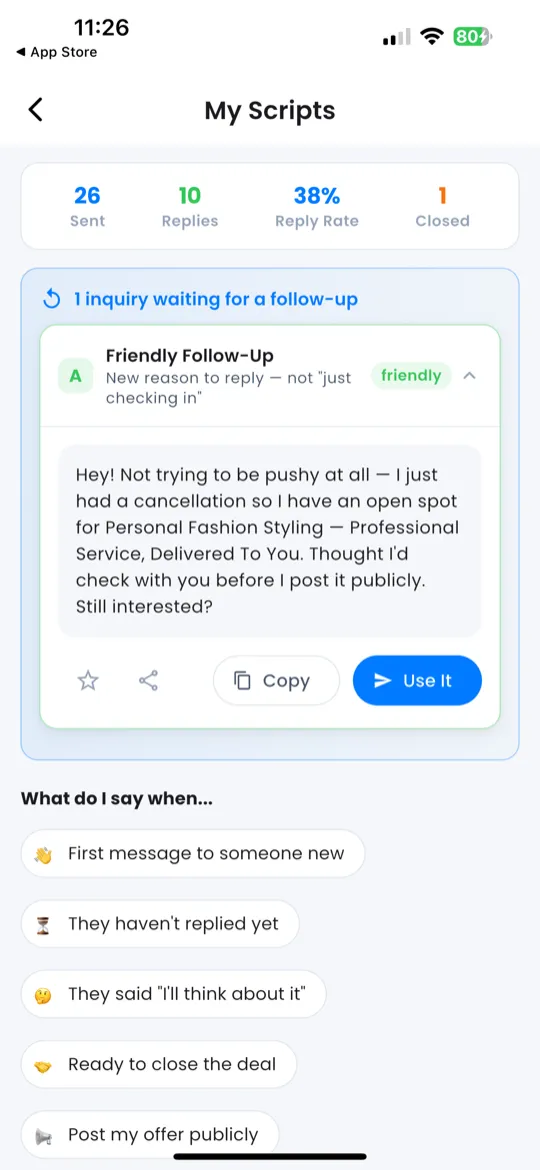
Access your Client Pipeline from:
- Home → Command Dock → Pipeline
- Action tab — links within daily actions that reference pipeline tasks
Pipeline Stages
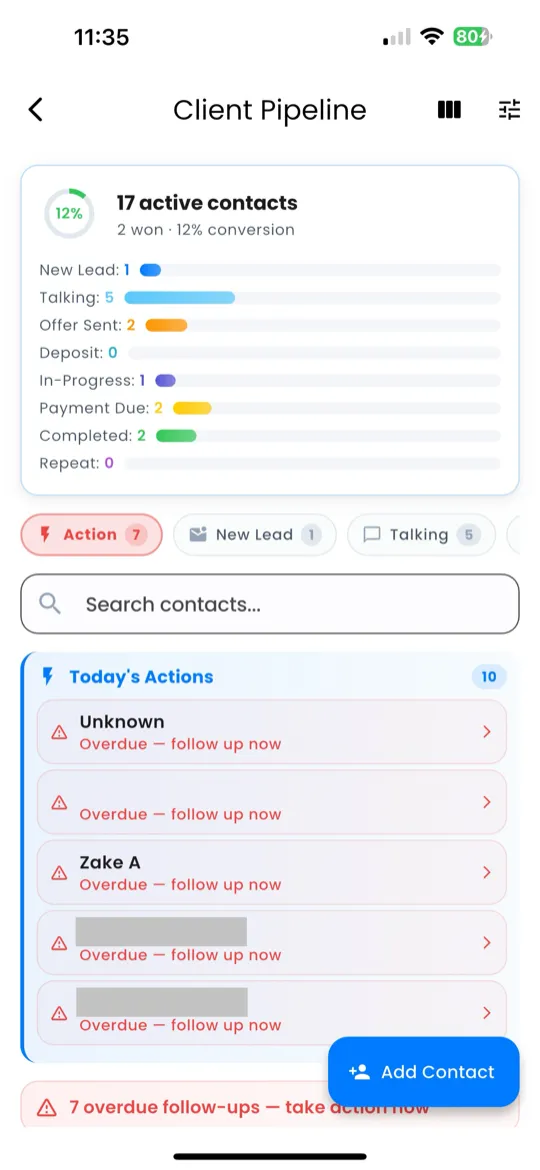
The Pipeline has 9 stages that represent the full client journey from first contact to completion:
| # | Stage | What It Means |
|---|---|---|
| 1 | New Lead | Someone you've identified as a potential client |
| 2 | Talking | You've started a conversation |
| 3 | Offer Sent | You've shared your pricing or proposal |
| 4 | Deposit Paid | They've made a partial payment |
| 5 | In-Progress | Work has started |
| 6 | Payment Due | Job is done, awaiting final payment |
| 7 | Completed | Fully paid, job delivered |
| 8 | Repeat/Referral | Client came back or sent someone new |
| 9 | Lost | Deal didn't work out |
Adding a Client
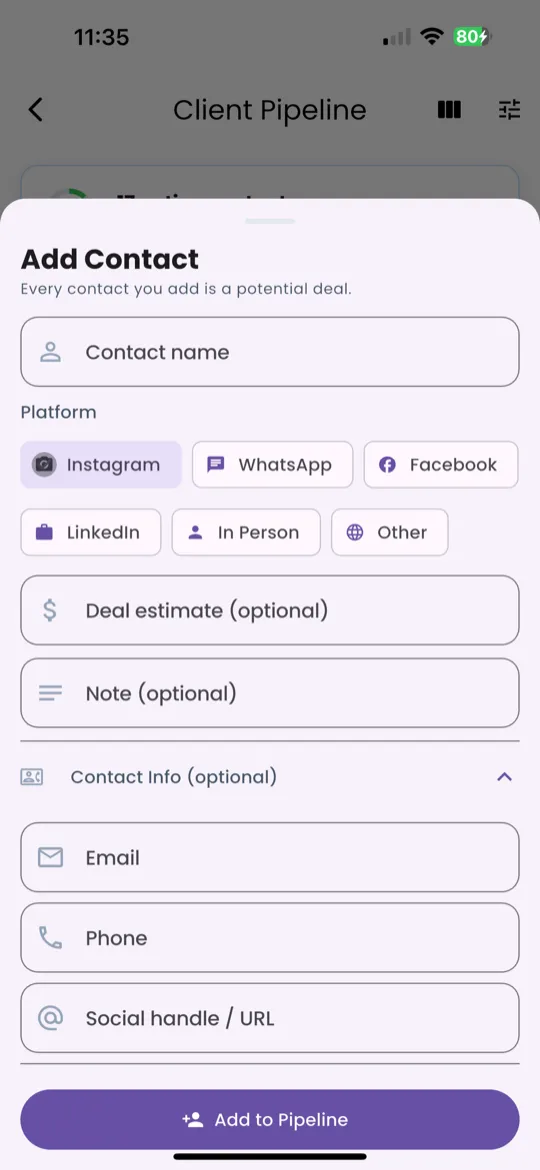
To add a new client to your pipeline:
- Tap the + button at the top of the pipeline screen.
- Enter the client's name (required).
- Select a stage — defaults to "New Lead."
- Optionally select a platform: WhatsApp, Instagram, or Facebook.
- Add optional notes (e.g., "Asked about hair braiding for her wedding").
- Tap Save.
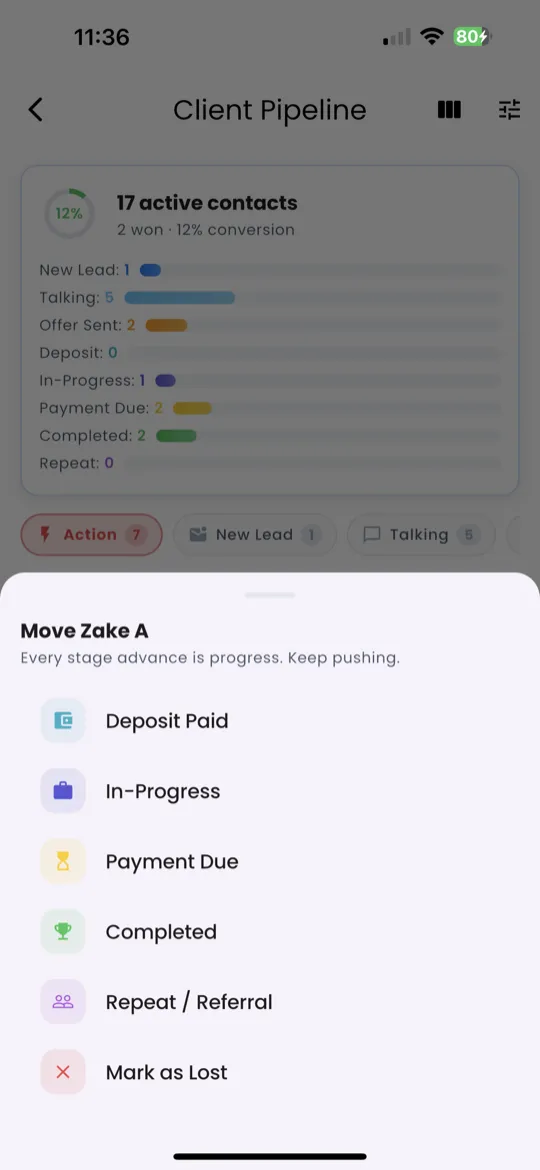
Moving Stages
When a client progresses, update their stage:
- Tap the client's card to open their detail view.
- Tap the Stage dropdown.
- Select the new stage.
- The client automatically moves to the new stage tab.
Client Detail
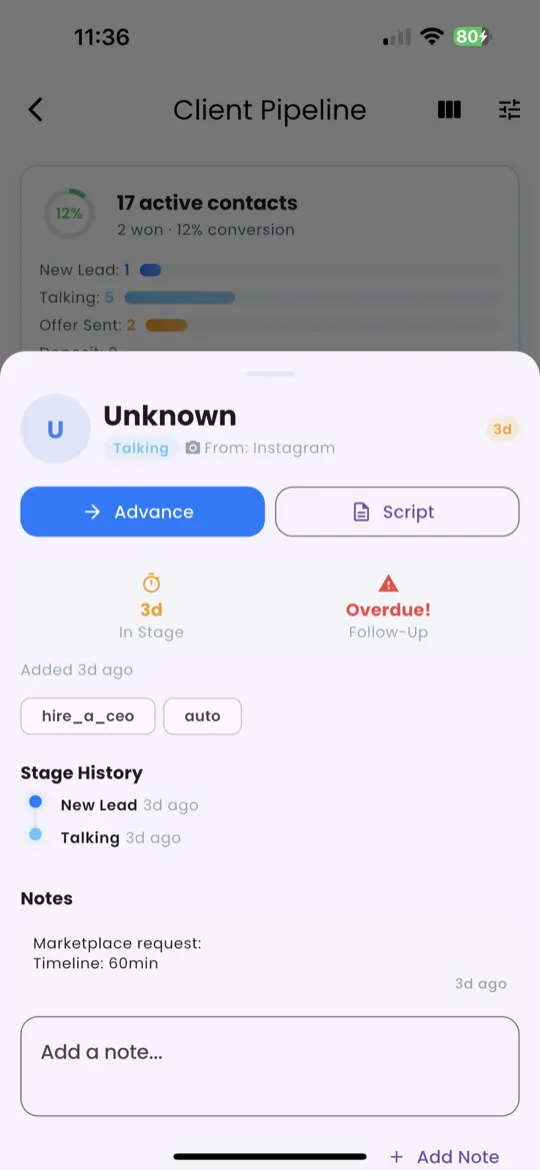
Tap any client to view their full detail card:
- Name
- Platform — WhatsApp, Instagram, Facebook, or none
- Stage — editable from the detail view
- Notes — editable, add context anytime
- Date Added
Quick Actions on the detail card:
- 📜 Scripts — opens Scripts Library filtered for this client's stage
- 📞 Contact — opens platform link if available
- ✏️ Edit — edit all client fields
Search & Filter
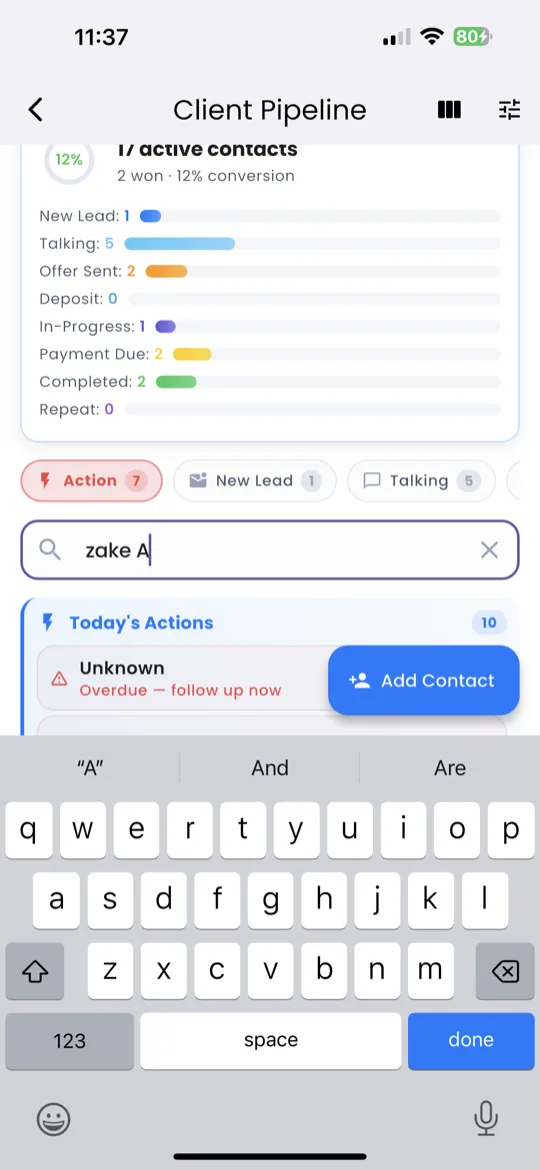
Find clients quickly using the tools at the top of the pipeline:
- Search bar — search by client name
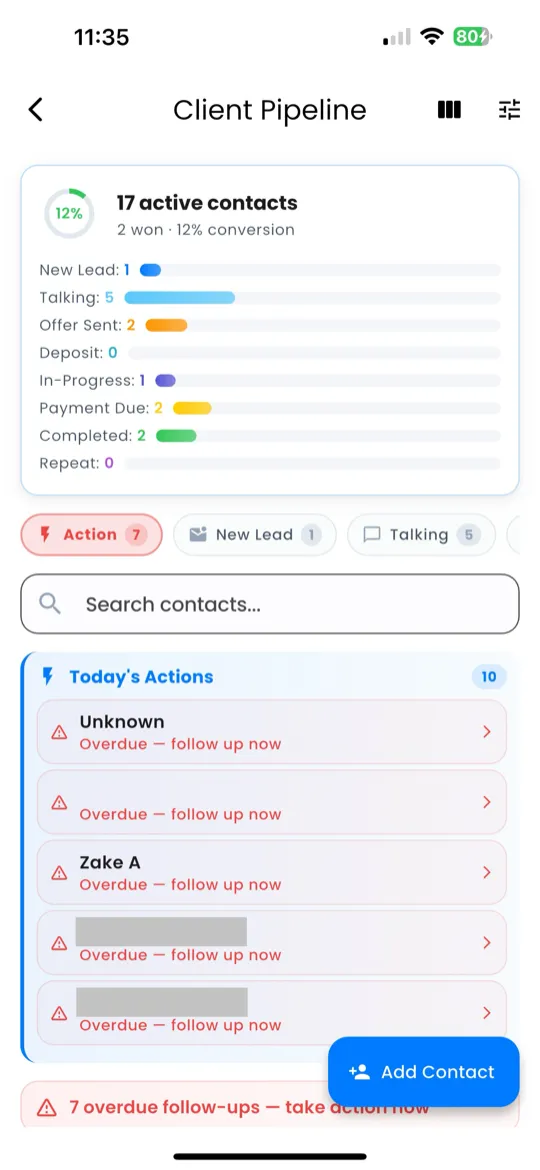
- Stage tabs — tap a stage to filter the list
- Sort order — clients are sorted by most recently updated
Pipeline + Scripts Integration
The Pipeline and Scripts Library are deeply connected:
- When you tap 📜 Scripts from a client detail card, the Scripts Library opens with "Best Scripts for This Lead" at the top.
- Scripts are automatically filtered by the client's current stage.
- The client's name is inserted into each script, so messages are ready to send.