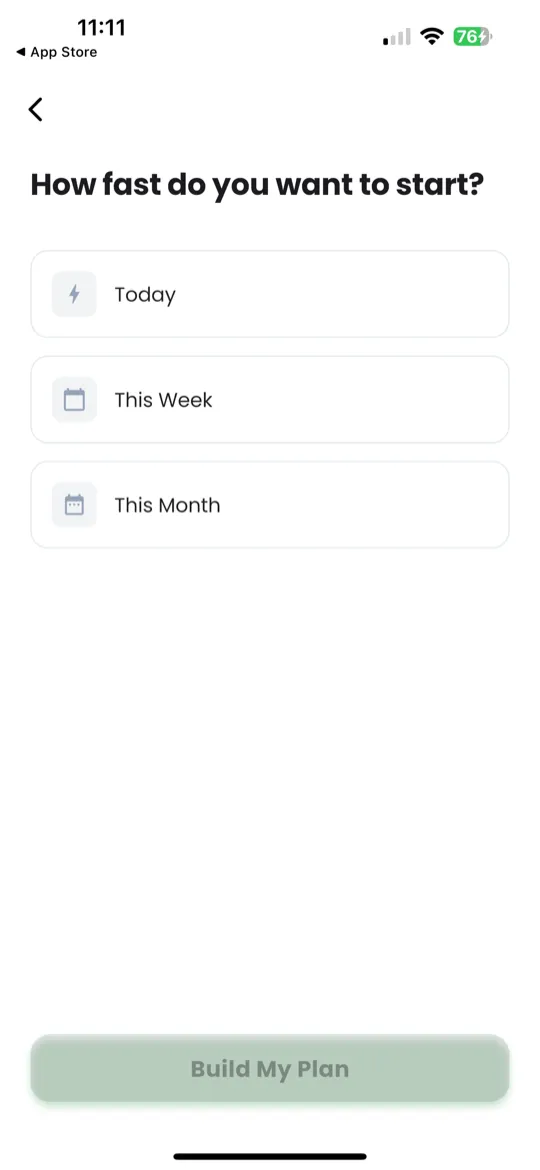
1. Download & Open the App
- Open the App Store (iOS) or Google Play Store (Android).
- Search for Giftdemy.
- Tap Get (iOS) or Install (Android).
- Once installed, tap the Giftdemy icon to open the app.
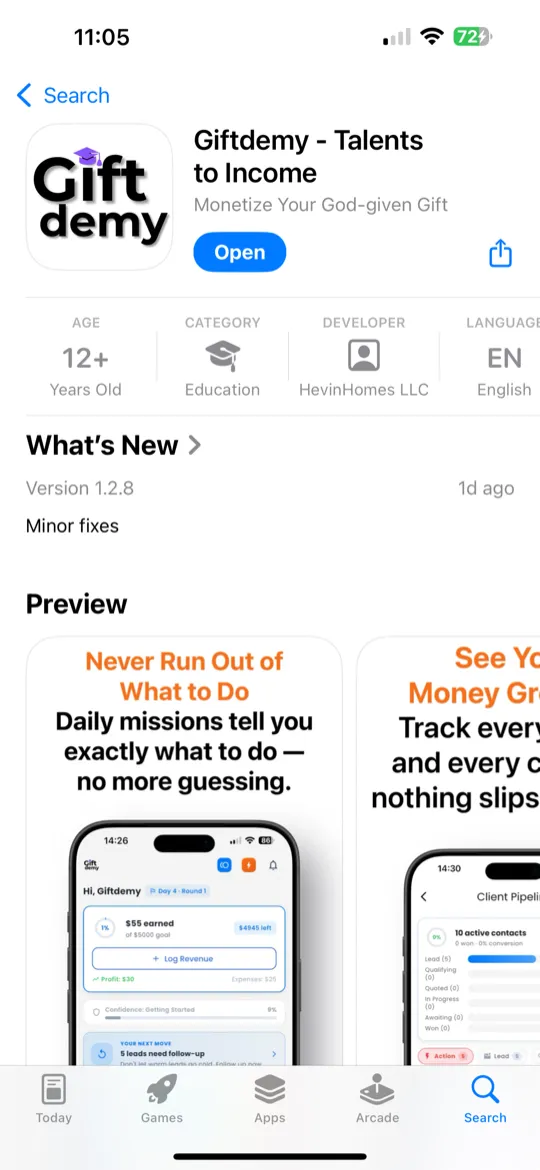
2. Create Your Account
- On the welcome screen, tap Get Started.
- Choose a sign-in method:
- Email & Password — enter your email and create a password.
- Google Sign-In — tap the Google button and select your account.
- Apple Sign-In (iOS only) — tap the Apple button and authenticate.
- Once signed in, you'll be taken to the onboarding flow.
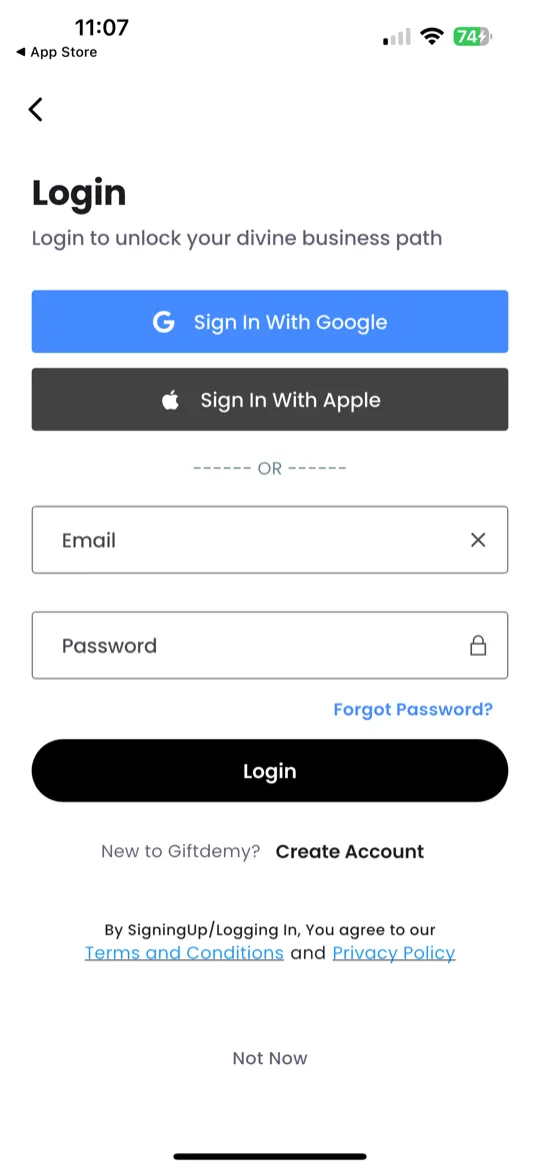
3. Complete Onboarding (4 Steps)
Onboarding takes about 2 minutes. Each step is designed to get you focused and ready.
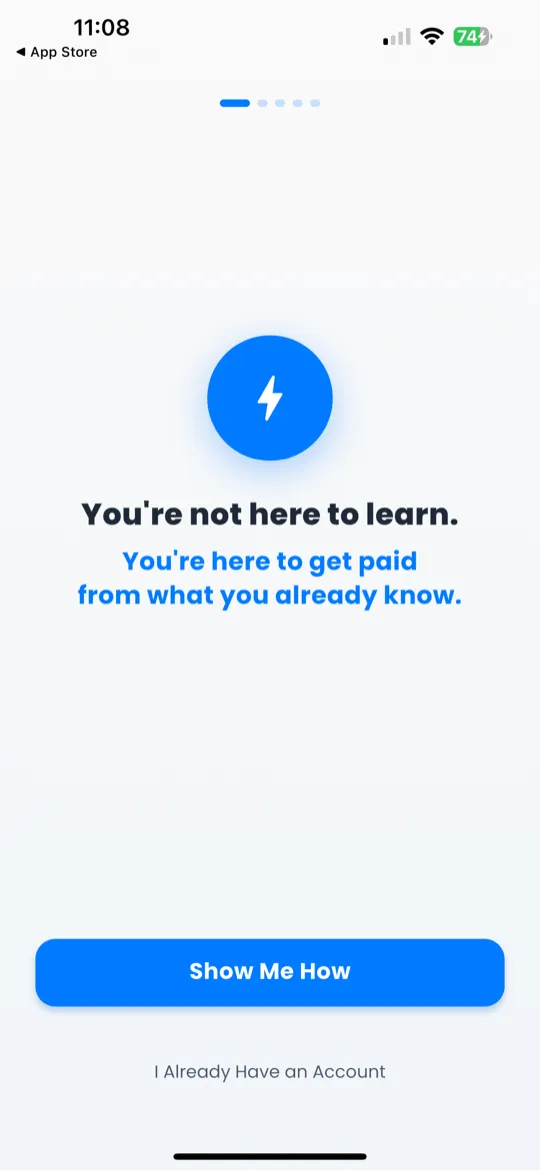
Step 1 — Identity Hook
You'll see: "You're not here to learn. You're here to get paid from what you already know."
This sets the mindset — Giftdemy is about action, not courses. Tap Next to continue.
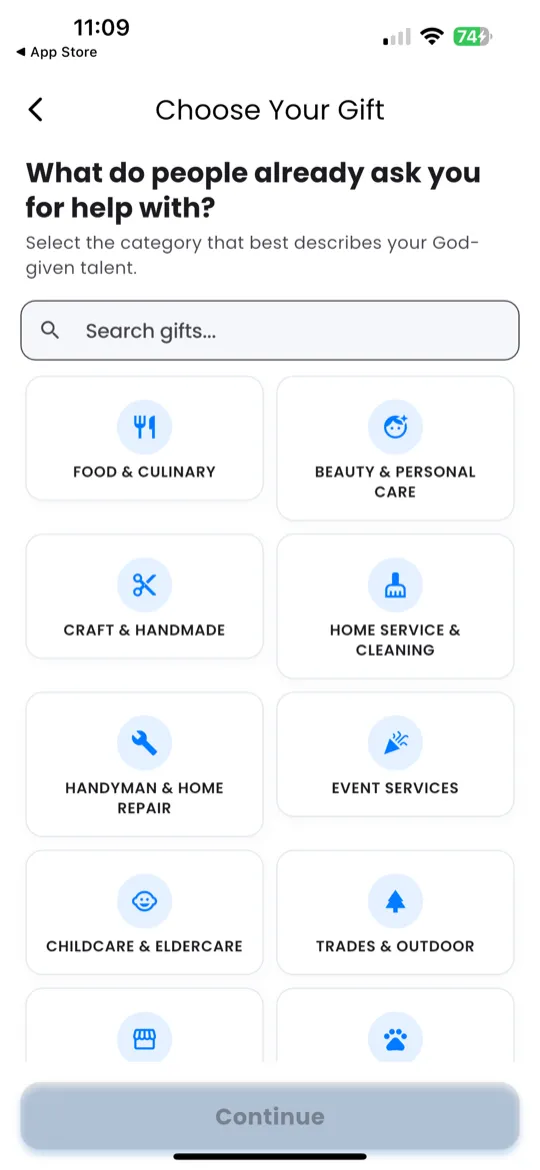
Step 2 — Select Your Gift
You'll see: "What do people ask you for help with?"
- Browse through 16 categories (Food & Culinary, Beauty & Personal Care, Craft & Handmade, etc.).
- Use the search bar at the top to find your skill quickly.
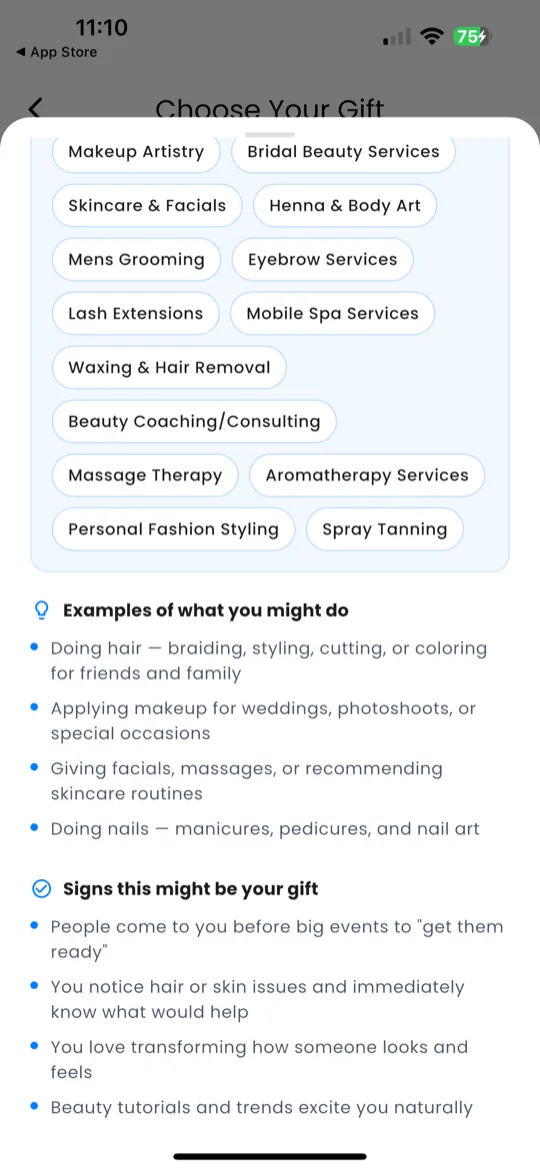
- Tap a category name to see an info panel explaining it.
- Tap your gift to select it (e.g., "Hair Braiding & Styling").
- Tap Continue.
Step 3 — Set Your Goal
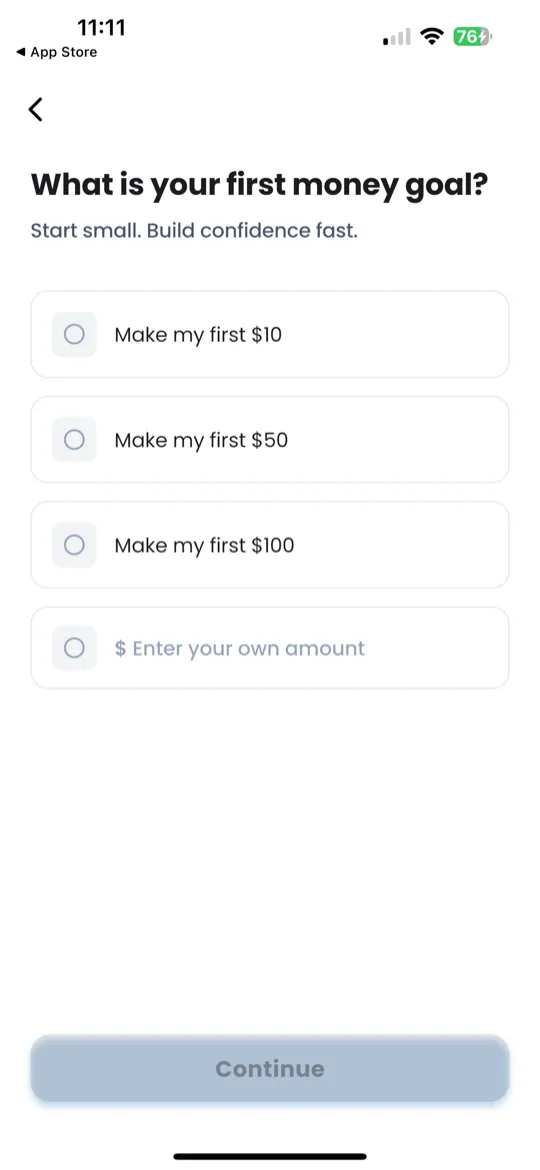
You'll see: "What is your first money goal?"
- Choose a preset amount: $10, $50, or $100.
- Or tap Custom and type your own amount.
- Tap Continue.
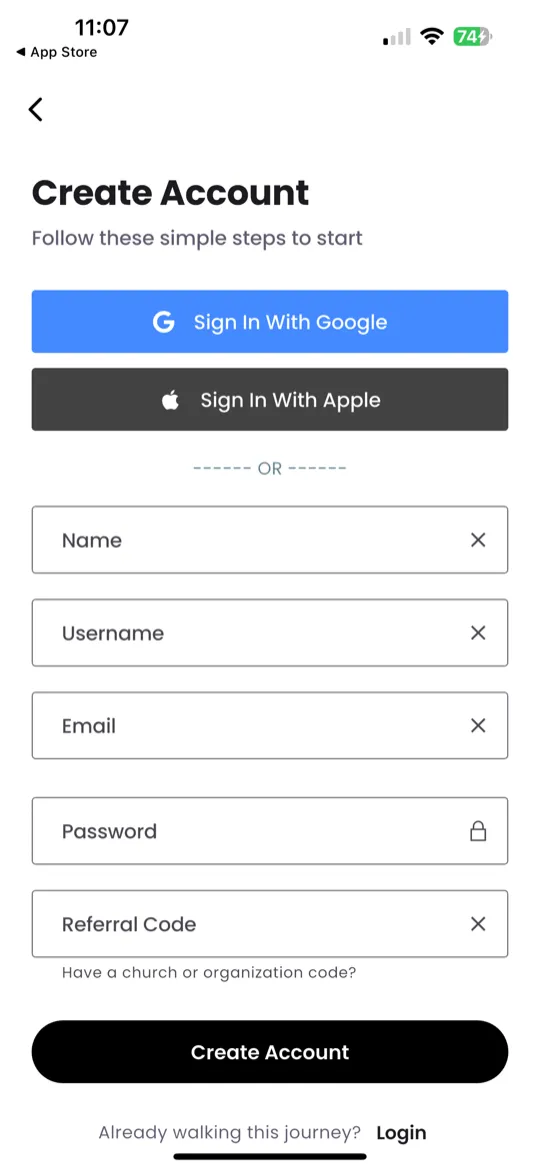
Step 4 — Choose Your Speed
You'll see: "How fast do you want to reach your goal?"
- Pick one: Today, This Week, or This Month.
- Tap Let's Go to finish onboarding.
4. You're In!
After onboarding, you land on the Home tab — your personal command center. You'll see:
- A personalized greeting: "Hi, [Your Name]"
- Your current challenge day and round
- Quick-action buttons to start your first mission