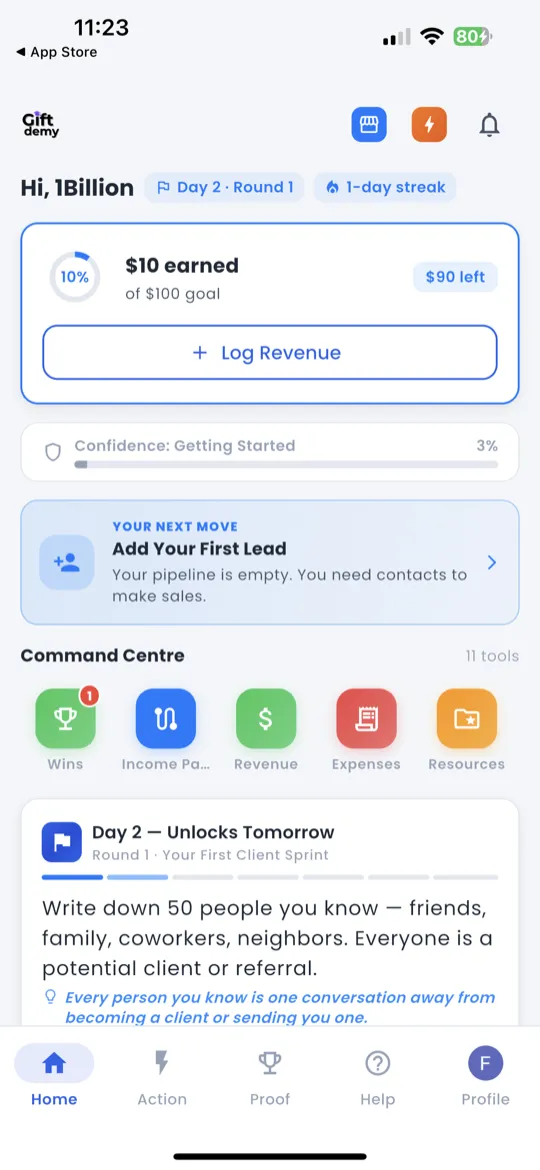
Greeting & Status
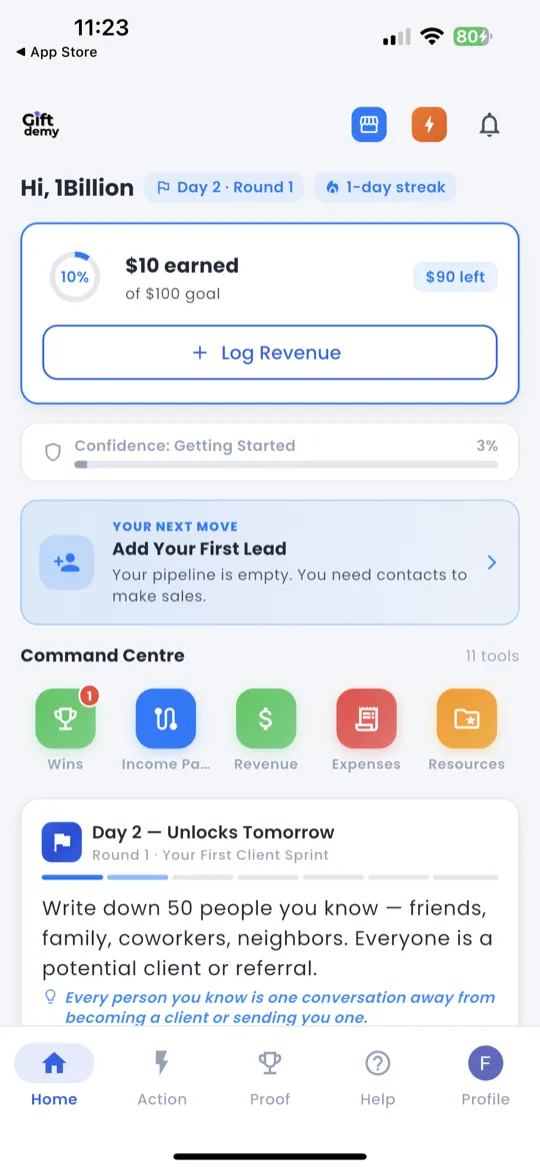
At the top of the Home screen you'll see a personalized greeting: "Hi, [Your Name]". Just below it is a status strip that keeps you oriented at a glance.
The status strip shows three key facts:
- Day — which day of your current 7-day round you're on (e.g., Day 3).
- Round — which round you're currently in (e.g., Round 2).
- Streak — how many consecutive days you've completed a Daily Check-In.
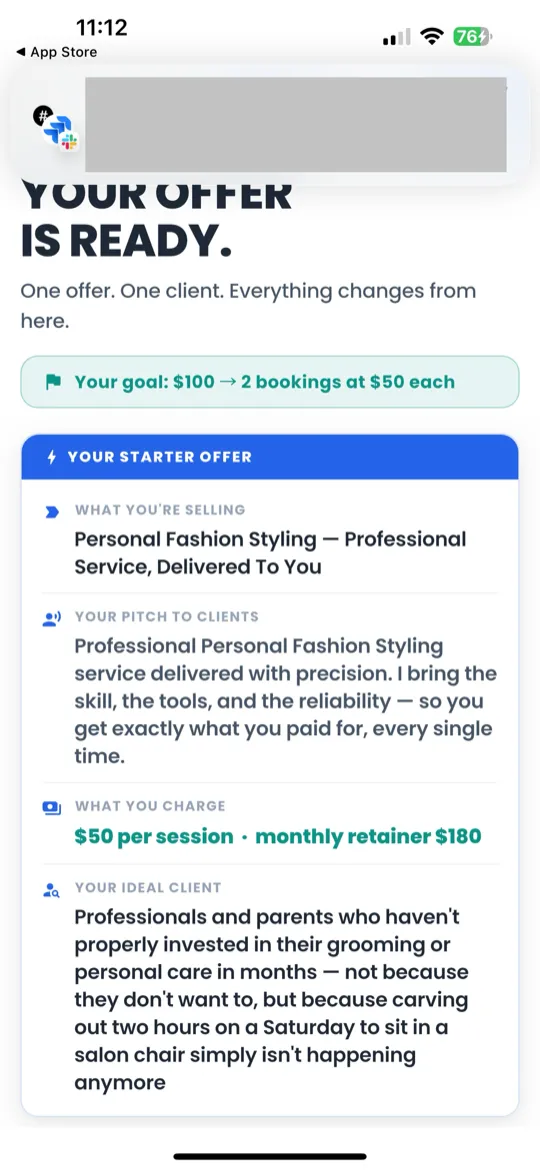
Goal Progress
Below the greeting you'll find the Goal Progress card. This card shows the money goal you set during onboarding and how close you are to reaching it.
- A progress bar fills as you log revenue in your Daily Check-In.
- The dollar amount you've earned so far and your target are displayed (e.g., $35 / $100).
- The card updates every time you submit a check-in with revenue.
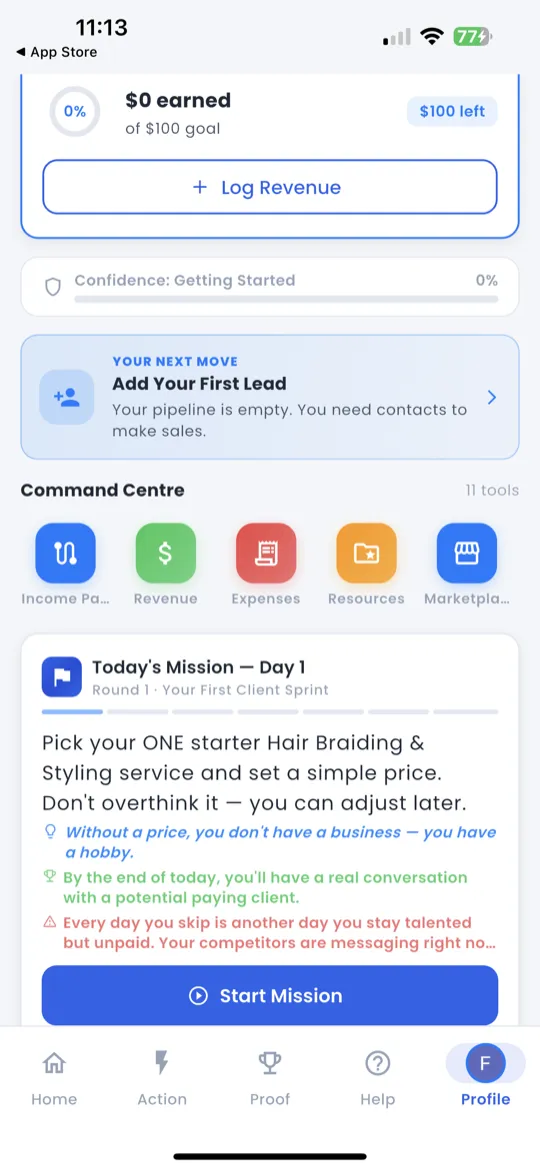
Your Next Move
The Your Next Move card is context-aware — it tells you exactly what to do right now based on where you are in your challenge.
- If you haven't started today's actions, it nudges you to the Action Tab.
- If you've finished actions but haven't checked in, it points you to the Daily Check-In.
- If everything is done for today, it congratulates you and previews tomorrow's focus.
Tap the card to jump straight to the suggested task.
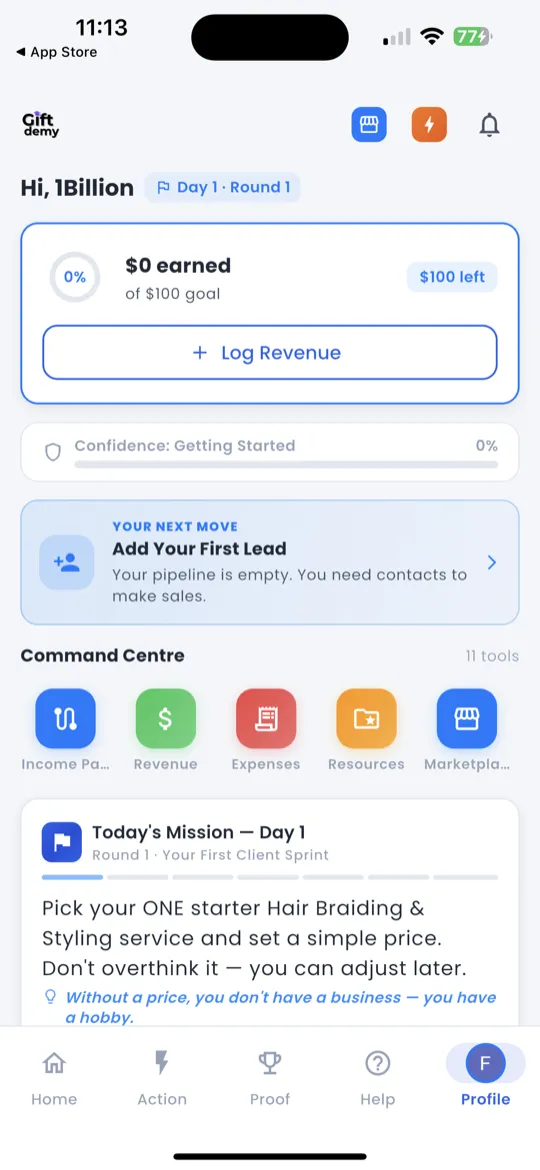
Command Dock
The Command Dock is a horizontally scrollable row of 11 quick-action buttons. Swipe left or right to see them all.
| Button | What It Opens |
|---|---|
| Pipeline | CRM — manage your client pipeline |
| My Deals | Active deals and their status |
| Revenue | Revenue tracker — see earnings over time |
| Expenses | Log and track your business expenses |
| Income Path | 30-round roadmap showing all 5 income phases |
| Marketplace | Browse and book services from other gifted people |
| Partner | Accountability partner hub |
| Wins | Celebration feed — community wins |
| Cohort | Leaderboard — see where you rank |
| Mentor | Mentorship hub — connect with mentors |
| Resources | Learning resources for your gift |
Bottom Navigation
The bottom navigation bar is always visible. It has 5 tabs that take you to every major section of the app.
| Tab | Icon | Purpose |
|---|---|---|
| Home | 🏠 | Your command center — status, progress, quick actions |
| Action | ⚡ | Daily missions, scripts, and action guides |
| Proof | 🏆 | Achievements, badges, and proof of work |
| Help | ❓ | Resources, AI chat, and support |
| Profile | 👤 | Your profile, settings, and account |